
SVG uploads for WordPress is blocked by default. The reason is simple: security. SVGs aren’t like JPGs or PNGs — they’re XML code. That means someone could hand you a file that looks like a nice logo but is actually laced with malicious code.
That’s a genuine concern, but if you know what you’re doing and you trust the source of your SVGs (or you’ve made them yourself), you can override this restriction with a few lines of code. If you’re not sure what you’re doing you might be better off using a plugin from the WordPress repo that is built for enabling SVGs.
The code for SVG uploads for WordPress
Drop this into your child theme’s functions.php file, or a utility plugin:
/**
* SVG upload support (admins only by default)
*/
function sjwp_allow_svg_uploads( $mimes ) {
// Only allow for admins. Remove this check to allow all users.
if ( ! current_user_can( 'manage_options' ) ) {
return $mimes;
}
$mimes['svg'] = 'image/svg+xml';
return $mimes;
}

function sjwp_check_svg_filetype( $data, $file, $filename, $mimes, $real_mime = null ) {
$ext = strtolower( pathinfo( $filename, PATHINFO_EXTENSION ) );
if ( $ext === 'svg' ) {
$data['ext'] = 'svg';
$data['type'] = 'image/svg+xml';
$data['proper_filename'] = $filename;
}
return $data;
}

function sjwp_prepare_svg_for_js( $response, $attachment, $meta ) {
$file = get_attached_file( $attachment->ID );

// Skip non-SVGs
if ( ! $file || strtolower( pathinfo( $file, PATHINFO_EXTENSION ) ) !== 'svg' ) {
return $response;
}

$url = wp_get_attachment_url( $attachment->ID );
$dims = sjwp_get_svg_dims( $file );

// Fallback size if dimensions not found
if ( ! $dims ) {
$dims = [ 'width' => 512, 'height' => 512 ];
}

// Tell WordPress this is an image type with proper dimensions
$response['type'] = 'image';
$response['subtype'] = 'svg+xml';
$response['icon'] = $url;
$response['url'] = $url;
$response['sizes'] = [
'full' => [
'url' => $url,
'width' => $dims['width'],
'height' => $dims['height'],
'orientation' => ( $dims['width'] >= $dims['height'] ) ? 'landscape' : 'portrait',
],
];
$response['width'] = $dims['width'];
$response['height'] = $dims['height'];

return $response;
}

// Admin CSS to make SVGs display nicely in Media Library
function sjwp_admin_svg_styles() {
echo '<style>
.attachment .thumbnail img[src$=".svg"],
.media-modal .thumbnail img[src$=".svg"],
.attachment-preview img[src$=".svg"]{ width:100%; height:auto; }
</style>';
}

// Helper: extract SVG width/height
function sjwp_get_svg_dims( $path ) {
$xml = @file_get_contents( $path );
if ( $xml === false ) return null;

// Look for width + height attributes
if ( preg_match( '/<svg[^>]*\bwidth=["\']?([\d\.]+)(px)?["\'][^>]*\bheight=["\']?([\d\.]+)(px)?["\']/i', $xml, $m ) ) {
$w = (int) round( (float) $m[1] );
$h = (int) round( (float) $m[3] );
if ( $w > 0 && $h > 0 ) return [ 'width' => $w, 'height' => $h ];
}

// Fallback: use viewBox
if ( preg_match( '/viewBox=["\']?\s*([-\d\.]+)\s+([-\d\.]+)\s+([-,\d\.]+)\s+([-,\d\.]+)\s*["\']/i', $xml, $m ) ) {
$w = (int) round( (float) $m[3] );
$h = (int) round( (float) $m[4] );
if ( $w > 0 && $h > 0 ) return [ 'width' => $w, 'height' => $h ];
}

return null;
}

// Hooks
add_filter( 'upload_mimes', 'sjwp_allow_svg_uploads' );
add_filter( 'wp_check_filetype_and_ext', 'sjwp_check_svg_filetype', 10, 5 );
add_filter( 'wp_prepare_attachment_for_js', 'sjwp_prepare_svg_for_js', 10, 3 );
add_action( 'admin_head', 'sjwp_admin_svg_styles' );
What this does
- sjwp_allow_svg_uploads: Adds svg to the allowed MIME types, so WordPress will accept them. I’ve limited it to admins only (safer), but you can remove that check if you want to let editors/authors upload too.
- sjwp_check_svg_filetype: Fixes how WordPress checks the filetype. Sometimes WordPress mis-detects SVGs, this makes sure they’re recognised properly.
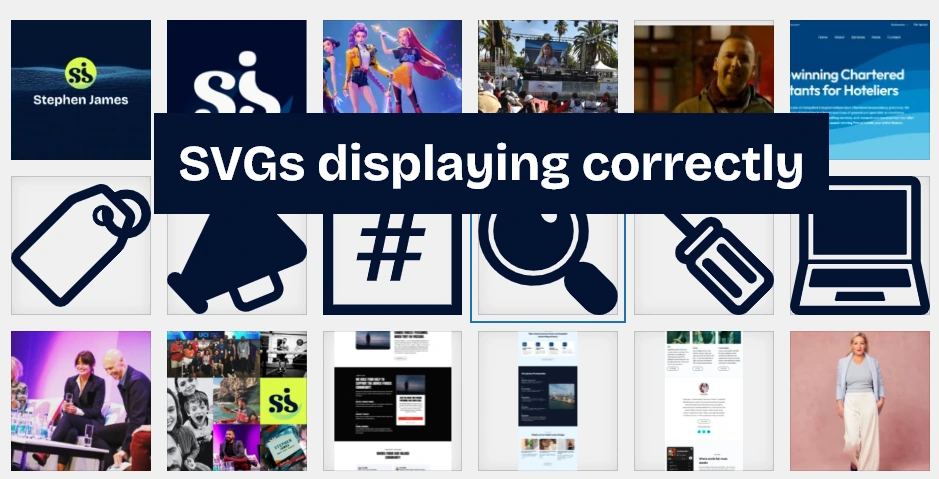
- sjwp_prepare_svg_for_js: This is the magic bit. Normally, when you upload an SVG, the Media Library just shows a boring browser icon because it doesn’t know the size. This function inspects the SVG file, finds the width and height (or viewBox), and tells WordPress “this is an image, here are its dimensions.” That way, SVGs display correctly in your Media Library and in the editor.
- sjwp_admin_svg_styles: A bit of CSS to make sure SVG thumbnails don’t look broken in the admin area.
- sjwp_get_svg_dims: A helper that digs into the SVG XML to read its width/height or viewBox values.
The result
Once this is added, you’ll be able to upload SVGs like any other image. They’ll preview correctly in the Media Library instead of showing that ugly default browser icon, and you won’t have to install a heavy plugin just to enable them.
Important note
This doesn’t sanitize SVGs. That’s by design — sanitizing can strip important parts out. The trade-off is: only use trusted SVG uploads for WordPress. If you’re downloading from random corners of the internet, scan or clean them first. I’m still getting this site up and running so if you found this helpful, please consider sharing and helping me reach more people 🙂 Stay tuned for more WordPress quick tips and easy wins.